
The Complete iPhone eSIM Guide: Compatibility, Setup, and Dual SIM
In this article
When you are travelling internationally, having reliable mobile data on your iPhone is not just a luxury; it is essential for navigation, ride-hailing, translation, and staying connected. Relying on physical SIM card kiosks at busy airport terminals or paying outrageous daily roaming fees from your home carrier is outdated. With SIMZY, you can download an international travel eSIM straight to your device and land at your destination fully connected. Here is how you can set up a travel eSIM on your iPhone before you take off.
Critical Pre-Installation Rules: Wi-Fi & Home Country Setup
To ensure a smooth activation without any travel disruptions, follow two golden rules before heading to the airport:
Active Wi-Fi Connection Required: Downloading an eSIM profile requires a live server handshake to fetch security keys and download network provisioning files. You must be connected to a stable, active Wi-Fi connection during the entire installation process.
Install in Your Home Country First: Do not wait until you touch down in a foreign airport to install your SIMZY profile. Public airport Wi-Fi can be unstable, slow, or blocked by landing captive portals. Purchase and download your SIMZY eSIM profile while you are still at home or connected to trusted Wi-Fi before departure. The plan validity timer only begins when your device connects to a supported local network upon arrival.
Step-by-Step iPhone Setup Guide for SIMZY
Step 1: Buy Your Plan & Connect to Wi-Fi
a. Purchase your SIMZY eSIM plan for your destination.
b. Ensure your iPhone is connected to a stable Wi-Fi network in your home country before proceeding.
Step 2: Add the eSIM to Your iPhone
a. Open Settings on your iPhone.
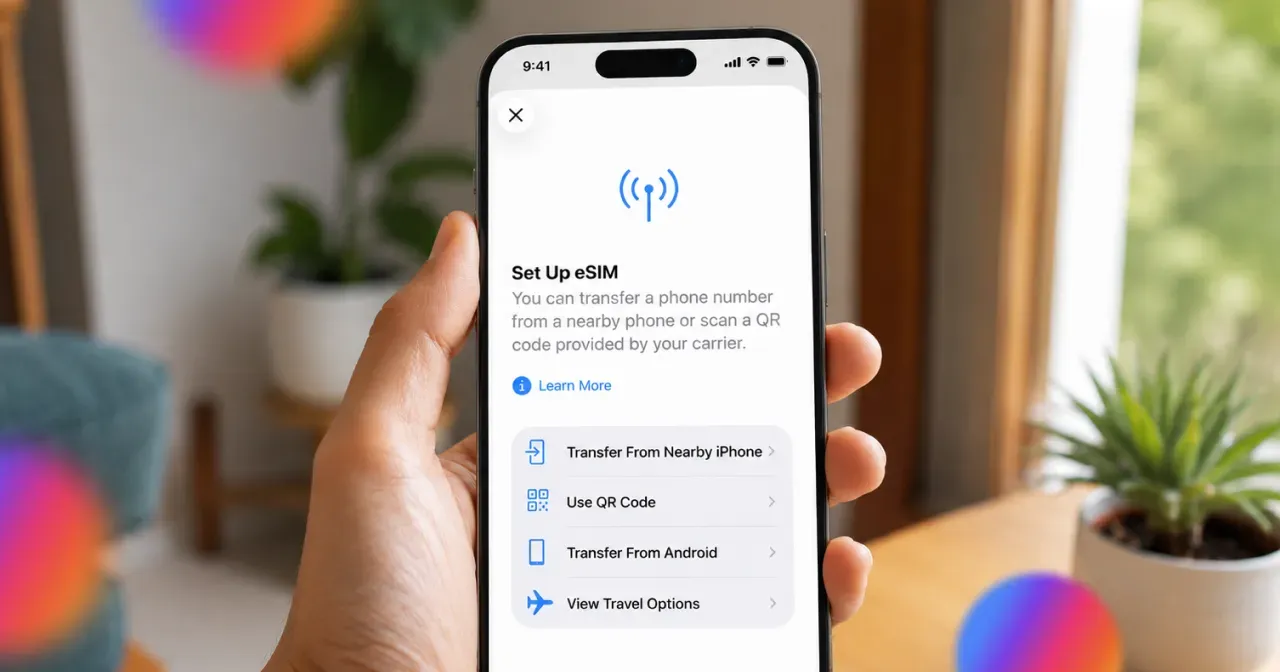
b. Tap Cellular (or Mobile Service). We recommend installing your eSIM before you travel while connected to a stable, private Wi-Fi network.
c. Tap Add eSIM.
d. Select Use QR Code.
e. Scan the SIMZY QR code sent to your email or display. (Note: If you cannot scan, tap Enter Details Manually at the bottom and enter the SM-DP+ Address and Activation Code).
f. Tap Continue and follow the prompts to complete profile installation.
Step 3: Label Your Lines
a. Tap your primary carrier line and set the label to Home or Primary.
b. Tap your new travel line and set the label to SIMZY or Travel Data.
Step 4: Configure Initial Dual SIM Preferences
a. Set Default Voice Line to your Primary line so you remain reachable for regular calls and 2FA authentication texts.
b. Keep iMessage & FaceTime associated with your Primary line.
c. Set Cellular Data to your SIMZY profile.
d. Toggle Allow Cellular Data Switching to OFF to avoid unexpected background charges on your home carrier.
Step 5: Activate Upon Landing at Your Destination
a. Turn off Aeroplane Mode when you reach your destination terminal.
b. Go to Settings > Cellular > Primary (Home Line) and verify Data Roaming is turned OFF.
c. Go to Settings > Cellular > SIMZY (Travel Line), toggle Turn On This Line to ON, and toggle Data Roaming to ON.
Troubleshooting Common Travel Issues
a. No Connection Upon Landing If your phone does not display data bars after switching off Airplane Mode, restart your iPhone. Navigate to Settings > Cellular > SIMZY and ensure Data Roaming is enabled for that profile.
b. Cannot Scan QR Code If you cannot scan the QR code using your camera, select Enter Details Manually at the bottom of the installation screen. Copy and paste the SM-DP+ Address and Activation Code provided in your SIMZY confirmation details.
c. Primary Line Incurring Charges Verify that Allow Cellular Data Switching is disabled under Settings > Cellular. This guarantees that all background application data and location updates run strictly through your prepaid SIMZY data allowance.
Compatible iPhone Models
- iPhone 17 Lineup: iPhone 17, iPhone 17 Air, iPhone 17 Pro, iPhone 17 Pro Max
- iPhone 16 Series: iPhone 16, iPhone 16 Plus, iPhone 16 Pro, iPhone 16 Pro Max, iPhone 16e
- iPhone 15 Series: iPhone 15, iPhone 15 Plus, iPhone 15 Pro, iPhone 15 Pro Max
- iPhone 14 Series: iPhone 14, iPhone 14 Plus, iPhone 14 Pro, iPhone 14 Pro Max
- iPhone 13 Series: iPhone 13, iPhone 13 mini, iPhone 13 Pro, iPhone 13 Pro Max
- iPhone 12 Series: iPhone 12, iPhone 12 mini, iPhone 12 Pro, iPhone 12 Pro Max
- iPhone 11 Series: iPhone 11, iPhone 11 Pro, iPhone 11 Pro Max
- iPhone XS, XS Max, and XR: The earliest iPhone generations supporting eSIM
- iPhone SE Series: iPhone SE (2nd generation) and iPhone SE (3rd generation)
Important Hardware & Lock Requirements
No Carrier Restrictions: Your iPhone must be unlocked by your home provider. Go to Settings > General > About > Carrier Lock and confirm it reads No SIM restrictions.
China Models: iPhones manufactured for mainland China feature two physical nano-SIM slots and do not support eSIM functionality.
Keep reading
SIMZY Coupon Codes: Get the Best Discounts on Travel eSIM Plans
Find the latest SIMZY coupon codes and eSIM deals for international travel. Save on travel data plans and stay connected worldwide with SIMZY.

The Best eSIM for the USA (2026): The Updated Traveler's Guide
Find the best eSIM for the USA with SIMZY. Compare affordable data plans, including unlimited options, and stay connected without costly roaming fees.

The Ultimate South Korea Travel eSIM Guide: High-Speed Data in Seoul & Beyond
Stay connected throughout South Korea with a high-speed travel eSIM. Discover flexible eSIM plans for Seoul, Busan, Jeju, and beyond, with 5G data, voice and SMS options, easy activation, and reliable connectivity for your trip.