
The iPhone Overseas Checklist: Settings to Tweak Before You Take Off
In this article
Your iPhone is the ultimate travel control centre, holding everything from your digital boarding passes and offline navigation maps to ride-hailing services, translation tools, and travel itineraries. But before you tap into all those essential apps on the road, making sure your iOS hardware and settings are fully optimized for foreign networks is critical to avoiding heavy battery drain, unexpected background data usage, and expensive international carrier fees.
Taking ten minutes on home Wi-Fi before your flight to audit and fine-tune your iPhone setup guarantees your phone remains secure, fast, and ready to perform the moment you land.
Essential Data & Roaming Toggles
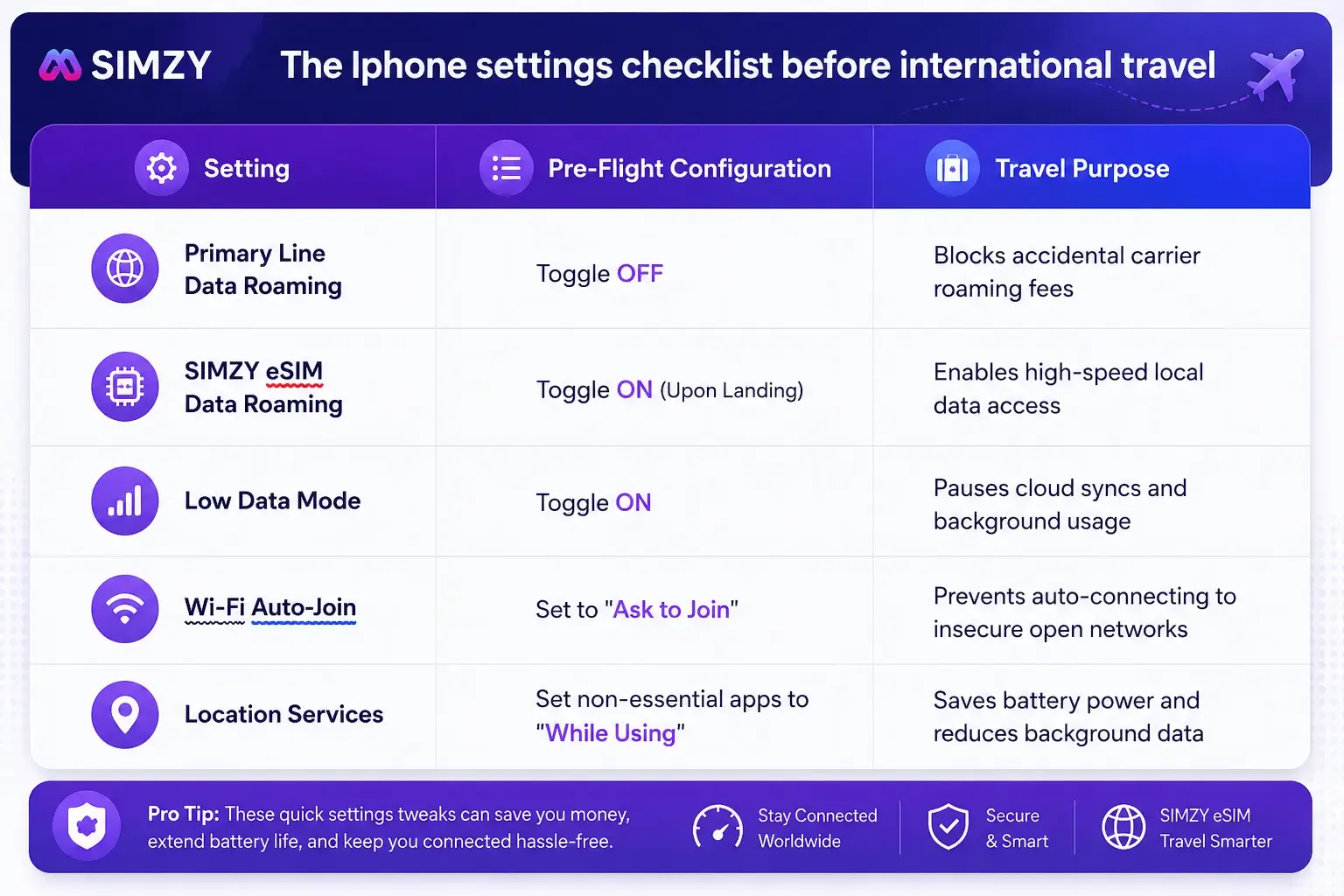
Disable Primary Data Roaming: Go to Settings > Cellular (or Mobile Data) and select your primary home SIM line. Toggle Data Roaming to OFF to prevent your carrier from automatically charging daily international roaming passes or pay-per-megabyte fees.
Turn Off Background App Refresh: Navigate to Settings > General > Background App Refresh. Switch it off entirely or limit it to Wi-Fi only so apps do not silently consume cellular data downloading updates and syncing content in the background.
Disable Low Data Mode Exceptions: Go to Settings > Cellular > Cellular Data Options and enable Low Data Mode. This pauses automatic updates, background tasks, and photo syncing while you are connected to cellular networks abroad.
Stop Automatic App & iOS Updates: Head to Settings > App Store and toggle off Automatic Downloads for both App Updates and Apps. Then go to Settings > General > Software Update > Automatic Updates and ensure iOS auto-downloads are disabled.
Security & Public Wi-Fi Safeguards
Disable Auto-Join for Unknown Networks: Navigate to Settings > Wi-Fi and toggle off Auto-Join Hotspots (or set it to "Ask to Join"). This prevents your iPhone from automatically connecting to unencrypted or rogue Wi-Fi networks in airports and train stations.
Set Up App-Based Two-Factor Authentication: Audit your banking and travel apps to ensure login verification codes are generated via app authenticators (such as Google Authenticator or Microsoft Authenticator) rather than SMS text messages, which may not arrive if your primary line is turned off.
Verify Find My iPhone & Stolen Device Protection: Go to Settings > [Your Name] > Find My and confirm Find My iPhone is enabled along with Send Last Location. On iOS 17.3 or later, enable Stolen Device Protection under Settings > Face ID & Passcode for extra security in unfamiliar areas.
Installing a Travel eSIM with SIMZY
If you want immediate data access upon arrival without paying expensive primary carrier fees or waiting in line for a physical SIM card, an international eSIM is the most convenient solution.
1. Purchase Your Travel Plan:
Select your destination and plan duration.
Browse available regional or country-specific packages covering over 220 destinations using SIMZY. Choose your trip duration, such as 7, 10, 14, 15, or 30 days, or opt for a plan that includes voice minutes and SMS where available.
2. Scan & Download Profile:
Requires home or airport Wi-Fi.
Go to Settings > Cellular > Add eSIM. Point your iPhone camera at the QR code provided in your SIMZY confirmation email to download the digital profile straight to your device.
3.Configure Dual SIM Lines:
Activate upon landing at your destination.
Set your SIMZY eSIM profile as your dedicated Mobile Data line while keeping your primary line assigned to Voice and iMessage. Turn Data Roaming ON specifically for the SIMZY profile once your flight touches down.
iPhone Travel Settings Quick Reference
Post-Arrival Checklist
Once your plane touches down and reaches the gate, complete these final quick checks:
- Switch off Aeroplane Mode.
- Confirm cellular data is set to your SIMZY profile in Settings > Cellular.
- Ensure Data Roaming is ON for your travel profile.
- Open your browser to test your local connection before exiting the aircraft.
Keep reading
SIMZY Coupon Codes: Get the Best Discounts on Travel eSIM Plans
Find the latest SIMZY coupon codes and eSIM deals for international travel. Save on travel data plans and stay connected worldwide with SIMZY.

The Best eSIM for the USA (2026): The Updated Traveler's Guide
Find the best eSIM for the USA with SIMZY. Compare affordable data plans, including unlimited options, and stay connected without costly roaming fees.

The Ultimate South Korea Travel eSIM Guide: High-Speed Data in Seoul & Beyond
Stay connected throughout South Korea with a high-speed travel eSIM. Discover flexible eSIM plans for Seoul, Busan, Jeju, and beyond, with 5G data, voice and SMS options, easy activation, and reliable connectivity for your trip.